
The "Merge PDFs Inside a Folder" action within the Workflow Media Manager Actions app by Integration Glue allows you to combine multiple PDF documents into a single, unified PDF file. This action is useful when you need to consolidate multiple documents, such as contracts, reports, or invoices, into one file for streamlined processing, sharing, or archiving.
The action automatically finds PDF documents inside a given HubSpot folder and merges them into one continuous document.
This action is particularly useful when:
- You need to combine multiple files into one document for easier distribution.
- You are managing contracts or invoices that need to be merged before sending to clients or partners.
- You want to automate the process of creating consolidated reports from various PDF sources.
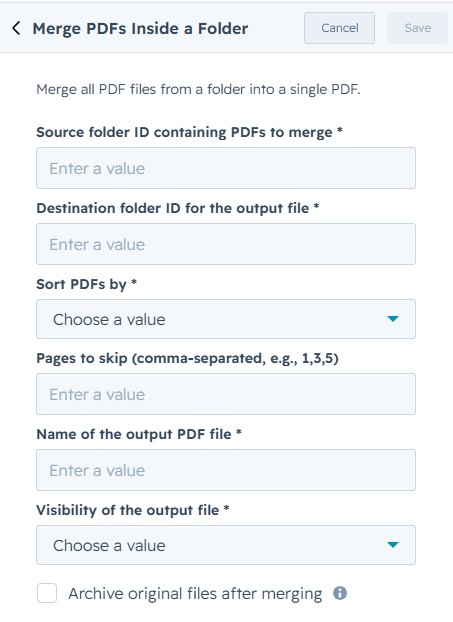
Worflow Action Fields
- Sourse folder ID is the ID of the folder that contains the PDF documents you want to merge. In HubSpot, files are stored in folders, and this field specifies which folder will searched through for PDFs.
- Destination folder ID for the output file is the ID of the folder where you want to save the merged PDF file. In HubSpot, files are stored in folders, and this field specifies which folder will contain the merged PDF.
- Sort PDFs by is the order of sequence the PDFs are merged.
- Name Ascending
- Name Descending
- Created Date Ascending
- Created Date Descending
- URL of the second PDF file Similar to the first one, this is the URL for the second PDF document that will be merged with the first PDF
- Pages to skip is the page numbers to skip on all PDF files. This can be used to remove cover pages on each file for continuity.
- Name of the output PDF file The name you want to give to the merged PDF file once the two PDFs are combined. This name will be used when saving or referencing the final document.
- Output property for generated PDF link A HubSpot property where the URL of the newly created, merged PDF file will be stored. This allows you to reference and use the PDF link elsewhere in your HubSpot workflow
- Visibility of the output file Determines who can access the merged PDF file. You can set the visibility to make the file either private or shared, based on who needs access to it within your organization or externally
- Archive original files will archive the original files after merging. This is the same as moving the file to trash through the web page. The archived files will be marked as deleted and only accessible through the Trash folder - its content remains on HubSpot servers indefinitely in a private state for 30 days till it is permanently deleted
Worflow Action Output Fields
- Created File ID is the Id of the generated PDF file.
- Created File URL is the URL of the generated PDF file.