
Note: Make sure you have completed the SharePoint Setup Process before using this action.
The Create Folders (One folder path per line) action by Integration Glue allows you to automate your document organization by creating single or nested folders directly from a HubSpot workflow. Whether you need to set up a standard folder structure for every new Deal or organize Client files by their Company name, this action ensures your SharePoint environment stays synchronized with your CRM.
By using dynamic HubSpot properties (tokens), you can ensure that every folder created is named accurately according to the record that triggered the workflow, reducing manual data entry and filing errors.
Quick Reference: Credits & Logic
- Credit Usage: Each successful execution of this action (regardless of how many nested folders are created in that single step) typically consumes 1 credit.
- Errors: If the action fails due to an authentication issue, 3rd-party API failure, or an invalid path, no credits are charged.
- Duplicate Handling: If a folder with the specified name already exists in the destination, the action will continue creating within the found folder.
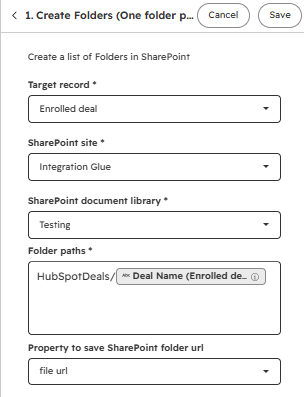
- SharePoint site: Select the connected SharePoint site from the dropdown menu.
- SharePoint document library: Select the target SharePoint document library where the new folders should be created.
- Folder paths: Define the name or path of the folders to be created.
- Nested Folders: Use a forward slash (
/) to create a hierarchy (e.g.,Client Name/Contracts). - Multiple Sets: Enter a new line for each independent set of folders you wish to create.
- Dynamic Naming: Use HubSpot property tokens to personalize folder names based on the enrolled record (e.g.,
HubSpotDeals/[Deal Name]).
- Nested Folders: Use a forward slash (
- Property to save SharePoint folder url: Select a HubSpot property to automatically save the created SharePoint folder URL directly to the record.
Step 1: Create a New Workflow
- In your HubSpot account, navigate to Automation > Workflows.
- Click Create workflow.
- Choose your object type (e.g., Deal-based or Company-based).
- Set your Enrollment Triggers (e.g., "When a Deal Stage is Closed/Won").
Step 2: Add the Action
- Click the + icon to add a new action.
- Scroll to the "Apps" section and select Create Folders (or Create list of Folders in SharePoint)
Step 3: Configure Folder Logic
- Select the Target record: Choose the enrolled record from the dropdown menu (e.g., Enrolled contact).
- Define the SharePoint Site: Select the connected SharePoint site from the dropdown menu.
- Define the Document Library: Select the target SharePoint document library from the dropdown menu.
- Set the Folder Path: Enter the desired folder path in the text box.
- For Nested Folders: Use a forward slash (e.g.,
Client Assets/Invoices). - Using HubSpot Data: Click the Contact/Deal/Company property token to insert dynamic names, such as
HubSpotDeals/[Deal Name]. - Multiple Folders: Enter a new line for each unique folder path you want to create.
- For Nested Folders: Use a forward slash (e.g.,
- Save the Folder URL: Select a property under Property to save SharePoint folder url to automatically store the folder link directly on the record.
Step 4: Review and Publish
- Click Save.
- Review your workflow settings and click Turn on.