
How does it work?
The 'Update Line Item' action modifies existing line items on a deal in HubSpot. It can update a specific line item (if a Line Item ID is provided) or all line items on the deal (if no Line Item ID is given).
Update a Specific Line Item (if Line Item ID is provided)
- Only updates the one specified line item on the deal.
- Useful for targeted updates when working with multiple line items.
Update All Line Items on a Deal (if Line Item ID is left blank)
- Updates every line item associated with the deal.
- Ideal for bulk updates (e.g., changing currency, pricing, or billing dates).
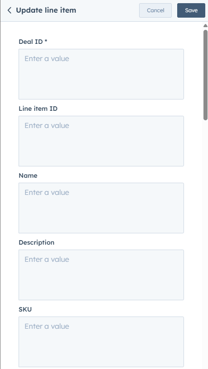
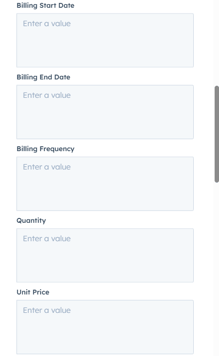
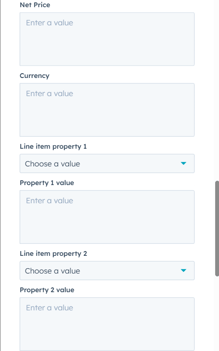
- Deal ID: The deal that contains the line item(s) you want to update.
- Line Item ID (optional): If provided, only updates that specific line item; if left blank, updates all line items on the deal.
Standard Line Item Properties
- Name: The name of the line item.
- Description: A short description of the product/service.
- SKU: The unique identifier for the product.
- Billing Start Date: When billing starts.
- Billing End Date: When billing ends (if applicable).
- Billing Frequency: How often billing occurs (e.g., Monthly, Yearly, One-time).
- Quantity: The number of units for the line item.
- Unit Price: Price per unit.
- Net Price: Total price before taxes/discounts.
- Currency: The currency used for pricing.
Custom Line Item Properties
- Property 1 & Value: Custom line item property and its value.
- Property 2 & Value: Custom line item property and its value.
- Property 3 & Value: Custom line item property and its value.
- Property 4 & Value: Custom line item property and its value.
- Property 5 & Value: Custom line item property and its value.
Step 1: Create a New Workflow
- In HubSpot, navigate to Automation > Workflows.
- Click Create workflow and choose Deal-based workflow.
- Select Start from scratch and click Next.
Step 2: Set the Enrollment Trigger
- Click Set up trigger.
- Choose a deal-based property that determines when line items should be updated (e.g., "Deal Stage is Contract Sent").
- Click Apply filter and then Save.
Step 3: Add the ‘Update Line Item’ Action
- Click + (Add an action) and search for Update Line Item.
- Select the action to configure its settings.
Step 4: Choose the Update Method
Option 1: Update a Specific Line Item
- Deal ID: Select the deal that contains the line item.
- Line Item ID: Enter the ID of the specific line item you want to update.
- This is useful when you need to update only one line item while keeping others unchanged.
Option 2: Update All Line Items on a Deal
- Deal ID: Select the deal that contains the line items.
- Leave the Line Item ID blank to update all line items associated with the deal.
- Ideal for bulk updates (e.g., changing currency, pricing, or billing dates).
Step 5: Define the Line Item Properties to Update
Fill in the details for the properties you want to update:
Standard Line Item Properties
- Name: Update the name of the line item.
- Description: Modify the product/service description.
- SKU: Change the unique identifier if needed.
- Billing Start Date: Update when billing starts.
- Billing End Date: Set a new end date if applicable.
- Billing Frequency: Adjust billing frequency (e.g., Monthly, Yearly, One-time).
- Quantity: Change the number of units.
- Unit Price: Adjust the price per unit.
- Net Price: Update the total price before taxes/discounts.
- Currency: Change the currency for pricing.
Custom Line Item Properties
- Property 1 & Value: Update a custom property value.
- Property 2 & Value:
- Property 3 & Value:
- Property 4 & Value:
- Property 5 & Value:
Click Save to finalize the action.
Step 6: Review and Activate the Workflow
- Click Review to check for any missing fields.
- Click Turn on to activate the workflow.