
⚠️ Requirements: To use this add-on, you must have an active MyGlue account and have installed the HubSpot app on your HubSpot portal.
To setup your installs, follow this article.
Installing the Google Workplace Marketplace Application.
In your Google Sheets, go to Extention -> Add-ons -> Get Add-On.
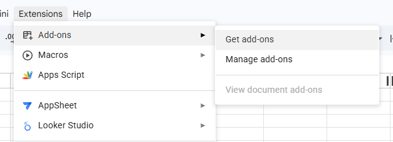
Search up HubSpot Integration Glue Tools and install app.
Add-on Menu Options
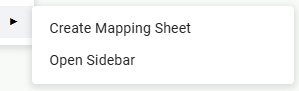
Once installed, the add-on adds a new menu to your Google Sheets. You’ll see two main options:
-
Create Mapping Sheet
-
Creates a copy of a public Google Sheet into a folder of your choice.
-
This ensures you have the correct sheet names, column names, and formulas required by the add-on.
-
You’ll be prompted to select the destination folder where the template will be saved.
-
-
Open Sidebar
-
Opens the add-on sidebar, where you can manage HubSpot property schemas and sync data.
-
Sidebar Features
The sidebar is your main control panel for syncing HubSpot data with Google Sheets.
Signing In and Selecting Your Portal
When you first open the sidebar:
-
-
Sign In with Google
-
You will be prompted to sign into your Google account via OAuth.
-
This allows the add-on to connect securely to your account.
-
-
Portal Selection
-
After sign-in, the sidebar will connect your Google account to your MyGlue account.
-
A dropdown will appear showing the HubSpot portals linked to your account.
-
Select the portal you want to use before syncing or updating.
-
-
Sync Property Schemas
-
Import HubSpot property schema data directly into your sheet.
-
Data will populate into the two main sheets:
-
HubSpot Objects
-
HubSpot Properties
-
Create or Update Properties
-
Within the HubSpot Properties sheet, you can manage property creation or updates.
-
To create or update a property:
-
Set the Status column to Create/Update.
-
Run the sync process from the sidebar.
-
The add-on will create new properties or update existing ones in HubSpot.
-
-
Once complete, the Status column will show whether the property was created or updated.
-
If an error occurs, an error message will be displayed instead.
Error Handling
If the add-on encounters an issue while creating or updating a property:
-
An error message will appear in the Status column.
-
Review the error, correct the data, and try again.
⚠️ Always start by creating the mapping sheet using the side bar. Custom sheets may not work correctly because the add-on depends on specific sheet and column names.