
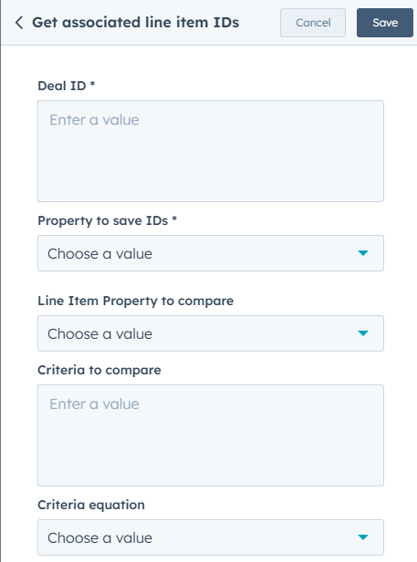
The 'Get Associated Line Item IDs' action retrieves all the line item IDs associated with a deal and stores them in a specified property. The line item IDs are stored as a semicolon-separated list for easy access in future workflow actions. This action also allows for filtering the line items based on specific line item properties and conditions (criteria), so you can pull only those line items that meet your desired criteria.
-
Deal ID: The deal ID to pull associated line items from.
-
Property to Save IDs: The property where the retrieved line item IDs will be stored. The IDs will be saved as a semicolon-separated list.
-
Line Item Property to Compare: The line item property (e.g., quantity, price) used to filter line items for retrieval.
-
Criteria to Compare: The criteria (e.g., equals, greater than) to compare the line item property against.
-
Criteria Equation: The value or condition that the line item property must meet (e.g., price = 100) for the line item ID to be retrieved.
This action allows you to gather and store line item IDs from a deal, with optional filtering based on specific line item properties and criteria.
Step 1: Create a New Workflow
- In HubSpot, navigate to Automation > Workflows.
- Click Create workflow and select Deal-based workflow.
- Choose Start from scratch and click Next.
Step 2: Set the Enrollment Trigger
- Click Set up trigger.
- Choose a deal-based property that determines when the line item IDs should be retrieved (e.g., "Deal Stage is Closed Won").
- Click Apply filter and then Save.
Step 3: Add the ‘Get Associated Line Item IDs’ Action
- Click + (Add an action) and search for Get Associated Line Item IDs.
- Select the action to configure its settings.
Step 4: Configure the Action Settings
Deal ID
- Select the Deal ID from which the line item IDs will be retrieved.
Property to Save IDs
- Choose a deal property where the retrieved line item IDs will be stored.
- The IDs will be saved as a semicolon-separated list.
(Optional) Filter Line Items by Criteria
If you only want to retrieve specific line items, apply filters:
- Line Item Property to Compare: Choose a property (e.g., quantity, price).
- Criteria to Compare: Select a condition (e.g., equals, greater than, less than).
- Criteria Equation: Enter the value the property must meet.
Click Save to finalize the action.
Step 5: Review and Activate the Workflow
- Click Review to check for any missing fields.
- Click Turn on to activate the workflow.