Supported files to render
This token allows you to render files such as JPEG, JPG, PNG.
If there is an unsupported file type you would like to add let us know here.
Render file in Google Slides process
- DocMergy recognises the render_file token
- DocMergy retrives a timed signed url from HubSpot image file
- Send the add image request with the image url to Google Slides at text box location
- Removes text box containing token
Using the render_file function in DocMergy
Function Syntax
Function syntax is the set of rules that define how to write a function, including its name, parameters, code block, and optional return value.
render_file(file_property, max_width, max_height)
Argument Breakdown
First argument breakdown [file_property]
- This is the HubSpot file property or HubSpot File's Public URL used to reference the file you would like to render in your DocMergy template
- Usually this is a file property contained within the object that is triggered such as
Second argument breakdown [max_width]
- This is the max width you would like the rendered file to be limited to when placed in the document in pixels
Third argument breakdown [max_height]
-
This is the max height you would like the rendered file to be limited to when placed in the document in pixels
Basic token explanation
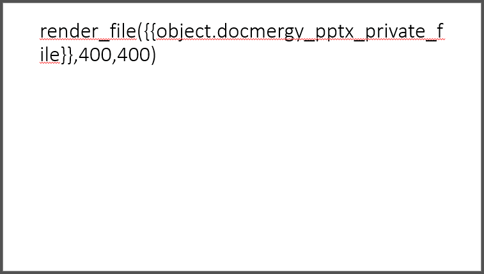
{{ render_file( {{object.file_pdf}}, 400, 400 }}
Here's what it means step-by-step:
- Look at the enrolled object property called "file_pdf" and get the file stored in this property
- "400" pixles is the max width of this image
- "400" pixles is the max heigh of this image
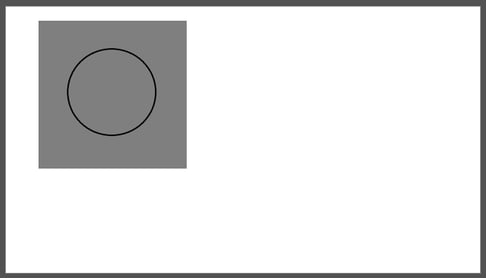
- Example output:
Association token explanation
{{ render_file( get_assocated_objects("deal", object.hs_object_id, "line_items")[0].pdf_specifations , 500 )}}
Here's what it means step-by-step:
- First we use the get_associated_objects function to
- "500" pixles is the max width of this image
- As no height is given aspect ratio will be kept the same.
Avoiding stretched images / incorrect aspect ratios
If you aspect ratio is different in the specified height:width within your token to the source image, the final inserted images will be stretched.To avoid this:
- Recommended: Only enter a height or width.
- If you must enter a height or width. Try to ensure that your source image aspect ratio will be standardized or close to a standardized aspect ratio - hint: use the HubSpot Workflow Media Manager Actions app to resize and crop images to standard sizes.
- Calculate the source image standard ratio, e.g. width/height, then specify your inserted images height and calculate your inserted images width.
- source width: 1,000px / source height: 500px = 2
inserted width: 200px / source aspect ratio: 2 = inserted height: 100px
Exclusions
-
This feature currently does not support looping or repeating content - if you have an image file, in the correct format and size you can use the standard insert image token approach.
Limitation
- DocMergy on Google Slides currently only renders one image per token/file property.
- Example: If you token render_token() contains more than 2 image files, only the first file will be rendered.
- To render multiple images on one slide, use two text boxes containing a render file token each.