
The 'Delete Line Items' action removes line items from a deal in HubSpot based on specific criteria. This action is useful when you need to automatically delete line items from a deal after certain conditions are met.
How it Works
Deal ID
- Uses the enrolled deal ID by default but can be overridden by specifying a different Deal ID.
Delete All Line Items
- When the "Delete all line item/s" checkbox is checked, it will delete all line items associated with the specified deal, ignoring any additional filters or criteria.
Line Item Property and Criteria
- If the checkbox is not checked, you can set specific filters based on line item properties (e.g., quantity, price) and criteria to identify which line items should be deleted.
- For example, you could delete line items where the quantity is 0 or price is below a certain threshold.
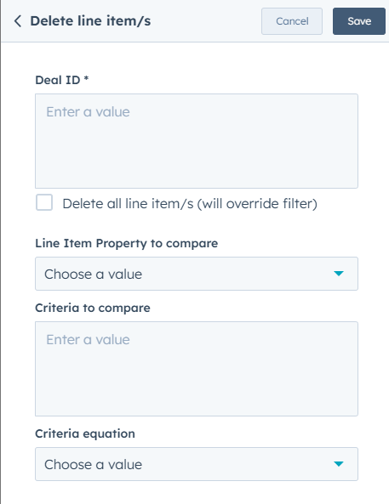
Workflow Fields
- Deal ID: The deal containing the line items you wish to delete (uses the enrolled deal ID by default).
- Delete All Line Item/s: Checkbox to delete all line items in the deal (overrides any criteria).
- Line Item Property to Compare: Dropdown to select a specific line item property (e.g., quantity, price) to compare for deletion.
- Criteria to Compare: Choose the comparison type (e.g., equals, greater than, less than).
- Criteria Equation: Set the value or condition that the line item property must meet for deletion
This action is useful for businesses that need to remove unwanted or invalid line items from deals based on certain conditions, helping to keep deals accurate and up-to-date without manual intervention.
Step 1: Create a New Workflow
- In HubSpot, go to Automation > Workflows.
- Click Create workflow and choose Deal-based workflow.
- Select Start from scratch and click Next.
Step 2: Set the Enrollment Trigger
- Click Set up trigger.
- Choose a deal-based property that determines the trigger
Step 3: Add the ‘Delete Line Items’ Action
- Click + (Add an action) and search for Delete Line Items.
- Select the action to configure its settings.
Step 4: Choose the Deletion Method
Option 1: Delete All Line Items
- Deal ID: Select the deal containing the line items to delete (uses the enrolled deal ID by default).
- Delete All Line Items: Check this box to remove all line items from the deal.
- This overrides any filters or criteria, meaning every line item under the deal will be deleted.
Option 2: Delete Line Items Based on Criteria
- Deal ID: Select the deal containing the line items to delete.
- Line Item Property to Compare: Choose a specific property to use as a filter (e.g., quantity, price).
- Criteria to Compare: Select a condition (e.g., equals, greater than, less than).
- Criteria Equation: Enter the value that determines which line items will be deleted.
Click Save to finalize the action.
Step 5: Review and Activate the Workflow
- Click Review to check for any missing fields.
- Click Turn on to activate the workflow.