
The 'Clone Line Item' action allows you to duplicate existing line items within any HubSpot Object. This is useful for cases where you need to replicate product details without manually re-entering them.
There are 10 HubSpot native hardcoded properties and 5 custom property fields in the workflow
This action creates a line item on a deal in two ways:
Clone an Existing Line Item
- Selects a line item from a deal and duplicates it onto the same or another deal.
- Copies standard properties (e.g., name, SKU, pricing) and custom properties (up to 5).
Create a Line Item from a Matching Product
- Searches for a product in the HubSpot product library based on a specific product property and value.
- Once a match is found, a new line item is created on the deal with the specified details.
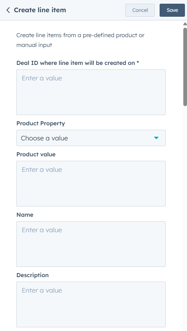
- Deal ID: The deal where the new line item will be added.
- Product Property Dropdown: The product property used to find a matching product (e.g., SKU, Name).
- Product Value: The specific value of the selected property to identify the product.
- Name: The name of the line item.
- Description: A short description of the product/service.
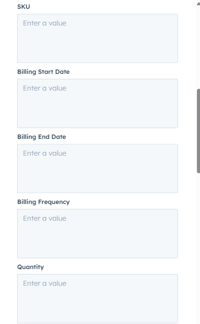
- SKU: The unique identifier for the product.
- Billing Start Date: The date when billing begins.
- Billing End Date: The date when billing ends (if applicable).
- Billing Frequency: How often billing occurs (e.g., Monthly, Yearly, One-time).
- Quantity: The number of units for the line item.
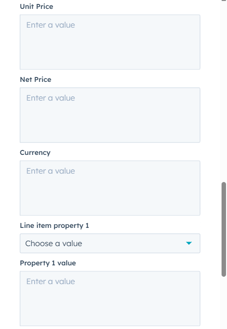
- Unit Price: The price per unit of the product.
- Net Price: The total price before taxes/discounts.
- Currency: The currency used for pricing.
- Property 1-5 & Values: Custom line item properties for additional details (e.g., discounts, tax rates).
Step 1: Create a New Workflow
- In HubSpot, go to Automation > Workflows.
- Click Create workflow and choose Deal-based workflow (since line items are associated with deals).
- Select Start from scratch and click Next.
Step 2: Set the Enrollment Trigger
- Click Set up trigger.
- Choose a deal-based property that determines when a line item should be cloned (e.g., "Deal Stage is Closed Won").
- Click Apply filter and then Save.
Step 3: Add the ‘Clone Line Item’ Action
- Click + (Add an action) and search for Clone Line Item.
- Select the action to configure its settings.
Step 4: Choose the Cloning Method
You'll have two options for creating the new line item:
Option 1: Clone an Existing Line Item
- Deal ID: Select the deal where the new line item will be added.
- Select a line item to duplicate: Choose an existing line item from the deal.
- Properties to copy: The action will duplicate standard HubSpot properties (e.g., Name, SKU, Pricing) along with 5 custom properties.
Option 2: Create a Line Item from a Matching Product
- Deal ID: Select the deal where the new line item will be added.
- Product Property Dropdown: Choose a property (e.g., SKU, Name) to search for a matching product.
- Product Value: Enter the specific value of the product property.
Step 5: Define the Line Item Properties
Fill in the following details for the new line item:
- Name: Enter a name for the new line item.
- Description: Provide a short description of the product/service.
- SKU: Enter a unique identifier for the product.
- Billing Start Date: Set the billing start date.
- Billing End Date: Set the billing end date (if applicable).
- Billing Frequency: Choose the billing frequency (e.g., Monthly, Yearly, One-time).
- Quantity: Specify the number of units.
- Unit Price: Enter the price per unit.
- Net Price: Specify the total price before taxes/discounts.
- Currency: Choose the currency for pricing.
- Property 1-5 & Values: If needed, enter additional custom property values (e.g., discounts, tax rates).
Click Save to finalize the action.
Step 6: Review and Activate the Workflow
- Click Review to check for any missing fields.
- Click Turn on to activate the workflow.