
The Upload File/s to Box action by Integration Glue allows you to automatically transfer files from your HubSpot File Manager to specific folders in Box. This is the perfect tool for backing up signed contracts, moving customer-provided assets into a centralized project folder, or ensuring that all deal-related documentation is archived in your corporate Box account.
Quick Reference: Credits & Logic
-
Credit Usage: Each successful execution of this action consumes
-
1 credit
-
1 additional credit per 10MB
-
-
Errors: If the action fails due to an invalid File ID, a missing Box Folder ID, or authentication issues, no credits are charged.
-
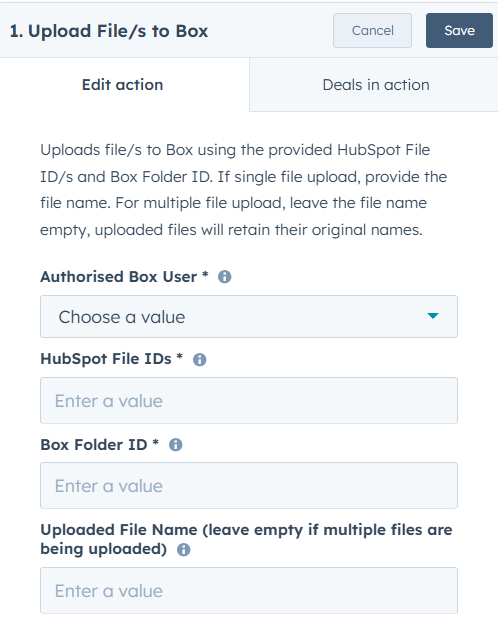
File Naming: You can specify a new name for single file uploads. For multiple files, the system will automatically retain the original filenames from HubSpot.
-
Authorised Box User: Select the connected Box account from the dropdown menu. This user must have the appropriate permissions (Editor or Owner) to delete the target files.
-
HubSpot File IDs: Enter the unique ID(s) of the file(s) currently stored in HubSpot.
-
Pro Tip: Use a HubSpot property token to dynamically pull the ID of a file associated with the enrolled record.
-
-
Box Folder ID: Enter the ID of the destination folder in Box.
-
Note: You can find this ID in the URL of your Box folder (e.g.,
box.com/folder/123456789).
-
-
Uploaded File Name:
-
Single File: Enter a custom name for the file (e.g.,
[Deal Name]_Contract.pdf). -
Multiple Files: Leave this field empty. If multiple IDs are provided, the files will be uploaded using their original HubSpot names.
-
How to Set Up the 'Upload File/s to Box' Action
Step 1: Create a New Workflow
-
In your HubSpot account, navigate to Automation > Workflows.
-
Click Create workflow and choose your object type (e.g., Deal-based).
-
Set your Enrollment Triggers (e.g., "When a Quote is signed").
Step 2: Add the Action
-
Click the + icon to add a new action.
-
In the sidebar, scroll to the Apps section and select Upload File/s to Box.
Step 3: Configure Upload Logic
-
Select the Authorised User: Choose the connected Box account.
-
Provide HubSpot File IDs: Use the Property token button to select the property where your file IDs are stored.
-
Define the Box Folder ID: Paste the destination Box Folder ID.
-
Handle Filenaming: Either type a static name, use tokens for a custom name, or leave blank for multiple files.
-
Click Save.
Step 4: Review and Publish
-
Double-check that the Authorised User has access to the destination folder.
-
Review your workflow settings and click Turn on.
Important Considerations
-
HubSpot File IDs: Ensure you are passing the numerical File ID, not the Public File URL, into the "HubSpot File IDs" field.
-
Box Storage Limits: Ensure the target Box account has sufficient storage space to accept the new files.
-
Permissions: If the upload fails, verify that the "Authorised Box User" still has active access to the destination folder.