
The Create Folder/File Collaboration action by Integration Glue automates the process of inviting users to collaborate on specific Box.com files or folders. Instead of manually sending invites, you can trigger a collaboration request the moment a Deal is created, a Ticket is opened, or a Contact reaches a certain lifecycle stage.
Quick Reference: Credits & Logic
-
Credit Usage: Each successful execution of this action (inviting one user to one item) consumes 1 credit.
-
Errors: If the action fails due to an invalid Email, incorrect Item ID, or insufficient permissions, no credits are charged.
-
Invite Behavior: Depending on your settings, the invited user will receive an automated email from Box.com to join the collaboration.
-
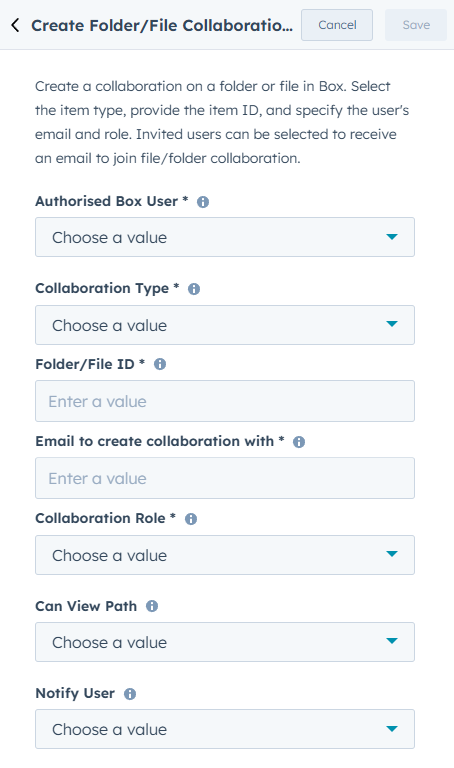
Authorised Box User: Select the connected Box.com account from the dropdown menu. This user must have the appropriate permissions (Editor or Owner) to delete the target files.
-
Collaboration Type: Specify whether you are inviting a user to a Folder or a File.
-
Folder/File ID: Enter the unique numerical ID of the Box.com item.
-
Tip: Use HubSpot property tokens to dynamically pull the ID of an item created in a previous workflow step.
-
-
Email to create collaboration with: Enter the email address of the person you want to invite.
-
Dynamic Sharing: Usually, you will use a token like
[Contact: Email]or[Deal: Primary Contact Email]here.
-
-
Collaboration Role: Select the level of access for the invited user (e.g., Editor, Viewer, Previewer, etc.).
-
Can View Path: Determine if the collaborator can see the folder path leading to the shared item.
-
Notify User: Select True to send a Box.com notification email to the invitee, or False to add them silently (they will see the item in their "All Files" view next time they log in).
How to Set Up the 'Create Collaboration' Action
Step 1: Create a New Workflow
-
In HubSpot, navigate to Automation > Workflows.
-
Select your object type (e.g., Deal-based) and set your Enrollment Triggers.
Step 2: Add the Action
-
Click the + icon to add a new action.
-
In the sidebar, scroll to the Apps section and select Create Folder/File Collaboration.
Step 3: Configure Collaboration Logic
-
Select the Authorised User: Choose the appropriate Box.com account.
-
Define the Item: Choose the Collaboration Type (File or Folder) and provide the Item ID.
-
Identify the Collaborator: Use a property token to select the user's Email.
-
Set Permissions: Choose the Collaboration Role that matches the level of access required.
-
Set Notifications: Choose whether to Notify User.
-
Click Save.
Step 4: Review and Publish
-
Review your workflow settings to ensure you are inviting the correct audience.
-
Click Turn on.
Important Considerations
-
Role Permissions: Ensure the "Collaboration Role" you select aligns with your organization's security policies. For example, "Editor" allows users to delete files, while "Viewer" is read-only.
-
External Users: If you are inviting users outside of your Box.com Enterprise, ensure your Box.com settings allow for external collaboration.
-
Item IDs: Folder ID: Found at the end of the URL:
box.com/folder/123456789-
File ID: Found at the end of the URL:
box.com/file/987654321
-