
The Delete folder/s in Box action by Integration Glue allows you to automatically remove entire directories from your Box account via HubSpot workflows. This is particularly useful for cleaning up project folders when a Deal is cancelled, removing temporary staging folders, or managing document lifecycles to maintain a clean Box environment.
Quick Reference: Credits & Logic
-
Credit Usage: Each successful execution of this action consumes 1 credit.
-
Errors: If the action fails due to an invalid Folder ID or authentication issues, no credits are charged.
-
Safety Net: By default, Box requires folders to be empty before deletion. However, this action includes a "Recursive" option to override this.
-
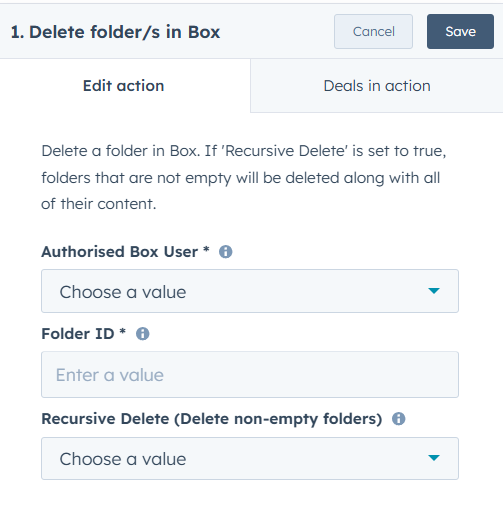
Authorised Box User: Select the connected Box account from the dropdown menu. This user must have the appropriate permissions (Editor or Owner) to delete the target files.
-
Folder ID: Enter the unique numerical ID of the Box folder you wish to remove.
-
Dynamic Deletion: It is highly recommended to use a HubSpot property token (e.g., a custom property where you stored the Box Folder ID during a "Create Folder" step) to ensure the correct folder is targeted for each record.
-
-
Recursive Delete (Delete non-empty folders) : Select True or False from the dropdown.
-
False: The action will only succeed if the folder is completely empty. If the folder contains files or sub-folders, the action will fail.
-
True: Use with caution. This will delete the folder and all of its contents (files and sub-folders) regardless of whether they are empty.
-
How to Set Up the 'Delete folder/s in Box' Action
Step 1: Create a New Workflow
-
In your HubSpot account, navigate to Automation > Workflows.
-
Click Create workflow and choose your object type (e.g., Deal-based).
-
Set your Enrollment Triggers (e.g., "When a Deal Stage moves to Closed Lost").
Step 2: Add the Action
-
Click the + icon to add a new action.
-
In the sidebar, scroll to the Apps section and select Delete folder/s in Box.
Step 3: Configure Deletion Logic
-
Select the Authorised User: Choose the appropriate connected Box account.
-
Provide Folder ID: Use the Property token button to select the property where your Box Folder ID is stored.
-
Set Recursive Logic: Choose whether to delete non-empty folders.
-
Click Save.
Step 4: Review and Publish
-
Double-check your logic: Ensure your Enrollment Triggers are specific so you don't accidentally delete active client folders.
-
Review your workflow settings and click Turn on.
Important Considerations
[!WARNING] Data Recovery: Folders deleted via this action are moved to the Box Trash. While they can usually be recovered by a Box Admin within 30 days, "Recursive Delete" can remove a large volume of data instantly. Always test this in a sandbox or with a test folder first.
-
Finding the Folder ID: The Folder ID is the numerical string at the end of a Box URL (e.g.,
box.com/folder/123456789). -
Permissions: If a folder fails to delete even with Recursive set to "True," verify that the Authorised User has "Delete" permissions in Box for that specific directory.