
The Delete File/s in Box action by Integration Glue allows you to automatically remove specific files from your Box account via HubSpot workflows. This is ideal for managing storage limits, removing outdated drafts once a contract is signed, or cleaning up temporary files after a process is completed.
By using HubSpot property tokens, you can dynamically target specific files based on IDs stored within your CRM records, ensuring that only the relevant documents are removed.
Quick Reference: Credits & Logic
-
Credit Usage: Each successful execution of this action consumes 1 credit, regardless of whether you are deleting a single file or multiple files in that one step.
-
Errors: If the action fails due to an invalid File ID or authentication issues, no credits are charged.
-
Permanence: Please note that files deleted via this action are moved to the Box Trash. Depending on your Box enterprise settings, these may be recoverable for a limited time or permanently deleted.
-
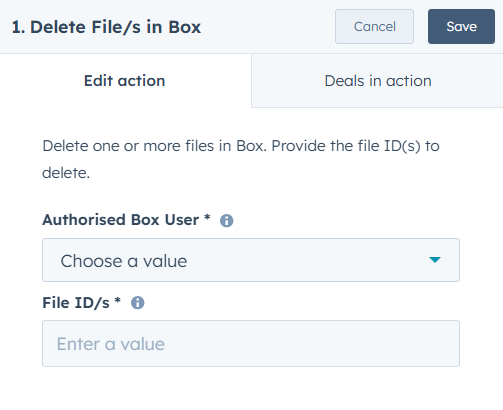
Authorised Box User: Select the connected Box account from the dropdown menu. This user must have the appropriate permissions (Editor or Owner) to delete the target files.
-
File ID/s: Enter the unique numerical identifier(s) for the files you wish to remove.
-
Multiple IDs: You can provide multiple file IDs in this field by separating them with a semicolon ( ; ).
-
Dynamic IDs: You can use HubSpot property tokens (e.g., a custom property where you've stored a Box File ID) to ensure the correct file is deleted for each enrolled record.
-
How to Set Up the 'Delete File/s in Box' Action
Step 1: Create a New Workflow
-
In your HubSpot account, navigate to Automation > Workflows.
-
Click Create workflow.
-
Choose your object type (e.g., Deal-based, Contact-based, etc.).
-
Set your Enrollment Triggers (e.g., "When a Deal moves to 'Lost'").
Step 2: Add the Action
-
Click the + icon to add a new action.
-
In the sidebar, scroll to the Apps section and select Delete File/s in Box.
Step 3: Configure Deletion Logic
-
Select the Authorised User: Choose the connected Box account from the dropdown menu.
-
Provide File ID(s): * Single File: Enter the Box File ID directly or use a property token (e.g., a custom property where you store the Box File ID).
-
Multiple Files: To delete multiple specific files at once, separate the IDs with a semicolon (e.g.,
123456789; 987654321). -
Dynamic Deletion: Use the Property token button to select a HubSpot property that contains the File ID.
-
Step 4: Review and Publish
-
Click Save.
-
Review your workflow settings to ensure you aren't accidentally targeting the wrong files.
-
Click Turn on.
Important Considerations
-
Finding the File ID: The File ID is the numerical string found at the end of a Box file URL (e.g.,
box.com/file/1234567890). -
Permissions: The "Authorised Box User" must have Editor or Owner permissions on the file (or the folder it resides in) to perform a deletion.
-
Separation Syntax: Ensure there are no spaces between the semicolon and the IDs if you are manually typing a list (e.g.,
ID1;ID2;ID3).