The Create Folder/s in Box action by Integration Glue allows you to automate your document organization by creating single or nested folders directly from a HubSpot workflow. Whether you need to set up a standard folder structure for every new Deal or organize Client files by their Company name, this action ensures your Box.com environment stays synchronized with your CRM.
By using dynamic HubSpot properties (tokens), you can ensure that every folder created is named accurately according to the record that triggered the workflow, reducing manual data entry and filing errors.
Quick Reference: Credits & Logic
-
Credit Usage: Each successful execution of this action (regardless of how many nested folders are created in that single step) typically consumes 1 credit.
-
Errors: If the action fails due to an authentication issue or an invalid Folder ID, no credits are charged.
-
Duplicate Handling: If a folder with the specified name already exists in the destination, the action will [insert behavior - e.g., skip creation or return the existing ID].
-
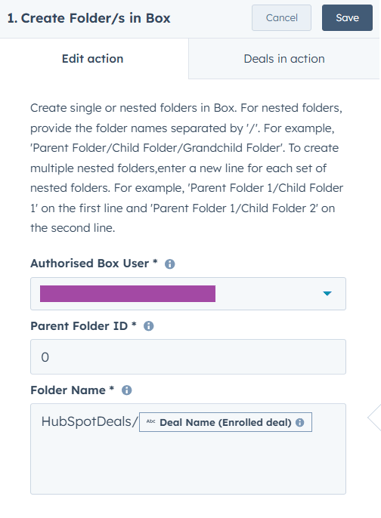
Authorised Box User: Select the connected Box.com account from the dropdown menu. This user must have "Editor" or "Owner" permissions on the target parent folder.
-
Parent Folder Is: Enter the ID of the Box folder where the new folders should be created.
-
Pro Tip: Use '0' to create folders in your Box root directory.
-
-
Folder Name: Define the name or path of the folders to be created.
-
Nested Folders: Use a forward slash (
/) to create a hierarchy (e.g.,Client Name/Contracts). -
Multiple Sets: Enter a new line for each independent set of folders you wish to create.
-
Dynamic Naming: Use HubSpot property tokens to personalize folder names based on the enrolled record (e.g.,
[Deal Name]/Technical Documents).
-
Step 1: Create a New Workflow
-
In your HubSpot account, navigate to Automation > Workflows.
-
Click Create workflow.
-
Choose your object type (e.g., Deal-based or Company-based).
-
Set your Enrollment Triggers (e.g., "When a Deal Stage is Closed/Won").
Step 2: Add the Action
-
Click the + icon to add a new action.
-
Scroll to the "Apps" section and select Create Folder/s in Box.
Step 3: Configure Folder Logic
-
Select the Authorised User: Choose the connected Box.com account from the dropdown.
-
Define the Parent Folder: Enter the Parent Folder ID.
-
Tip: You can find the ID in the URL of your Box.com folder (e.g., box.com/folder/123456789).
-
-
Set the Folder Path: Enter the desired name.
-
For Nested Folders: Use a forward slash (e.g.,
Client Assets/Invoices). -
Using HubSpot Data: Click the Contact/Deal/Company property token to insert dynamic names, such as
HubSpotDeals/[Deal Name]. -
Multiple Folders: Enter a new line for each unique folder path you want to create.
-
Step 4: Review and Publish
-
Click Save.
-
Review your workflow settings and click Turn on.
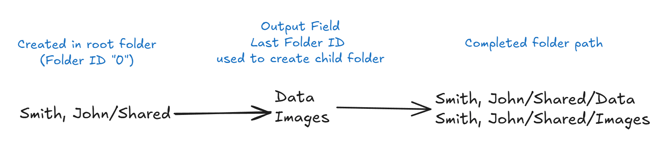
Using Output Fields for creating child folders in another workflow
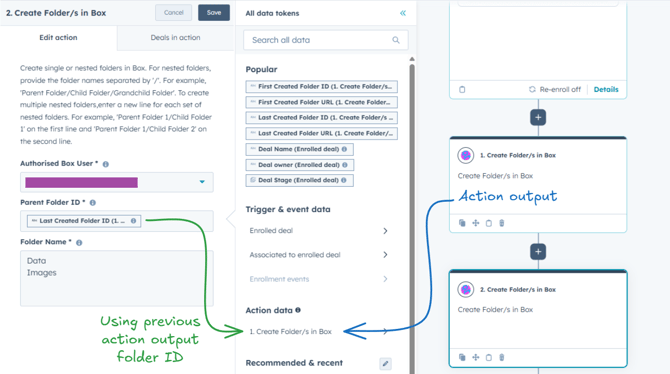
This action has four action outputs that can be used to create/link to the first and last folder created.
- First Created Folder ID
- First Created Folder URL
- Last Created Folder ID
- Last Created Folder URL
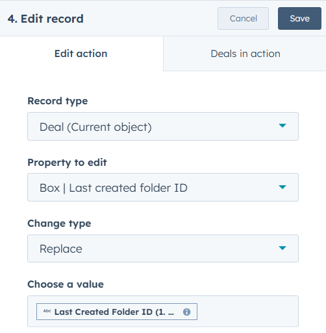
You can use a HubSpot Edit record action to save these values to a specific record managed in the action example below.
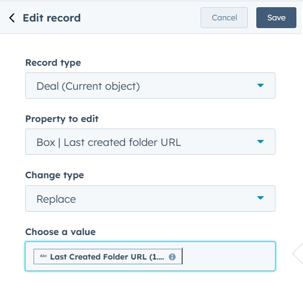
When creating a Box.com folder you can specify the Parent folder ID. With this field you can use the saved or previous action folder ID output field as a starting folder location.