The Box.com File Explorer CRM Card lets you browse Box.com files and folders directly inside the middle CRM card in HubSpot. This makes it easier for your team to stay inside HubSpot while still accessing the files they need, without jumping between systems.
By default, the card retrieves all files and folders from the Box.com root folder, which uses the folder ID "0". This gives users an immediate starting view without needing any extra configuration.
How it works
When the card loads, it displays the contents of the configured Box.com folder inside the CRM record. By default the starting folder is the root folder ("0"), you can immediately browse the top-level files and folders in Box.com
How to configure the starting folder
In the app settings, you can choose:
- Object Type
- Object Property
The app will read the selected property value from the CRM record and use that value as the Box.com folder ID to start from.
Box.com folder id can be obtained from your Box.com drive in your browser.

Add it to a property on the object record. This can be used to select different folders for different contacts or deals.

On the Settings page, set the Object Type and Object Property and click Save.
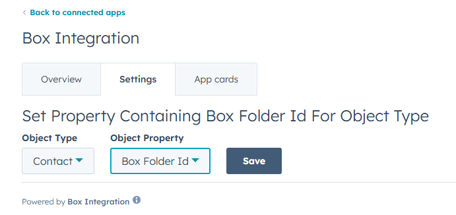
A table of your selected properties will be shown when refresh the page.

How to add the card to your CRM view
-
Open a CRM record and find the section you want to customize, then click Customize.
-
-
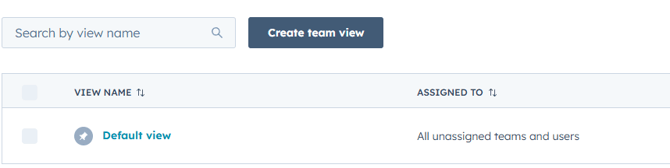
Select the view where you want to add the Box.com File Explorer card. In this example, we’ll use the default Contact view.
-
-
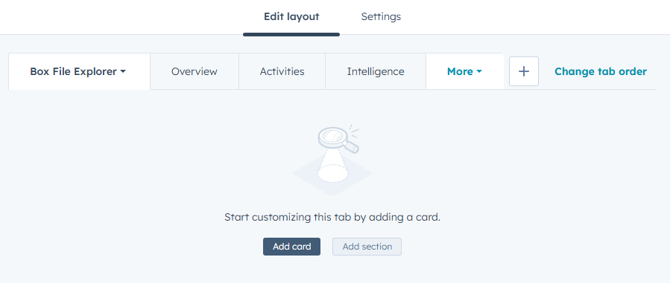
Click the plus button to create a new tab, then enter a name for the tab.
-
Once the tab has been created, click Add card.
-
-
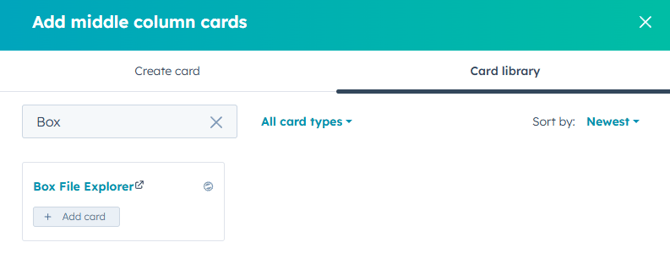
Open the Card library, search for Box File Explorer, and add the card.
-
-
Click Save and Exit.